Horse Progress Notes
A progress note can be created for a horse from the Quick add menu on the bottom navigation menu. When selected the Add Progress Note screen is displayed.
If the Quick add - Progress notes screen is opened when in a horse profile, the horse's name will automatically be populated in the horse name field.
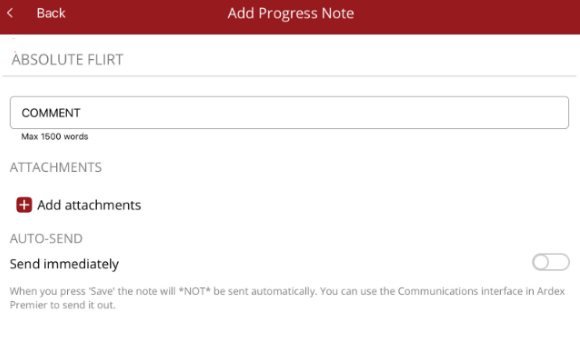

The comment field allows for up to 1500 words. The text box will automatically expand as text is entered.
The Attachments option will take you to uploaded media for the horse. If the media you want to attach is not already uploaded, select the Options menu in the top right hand corner.
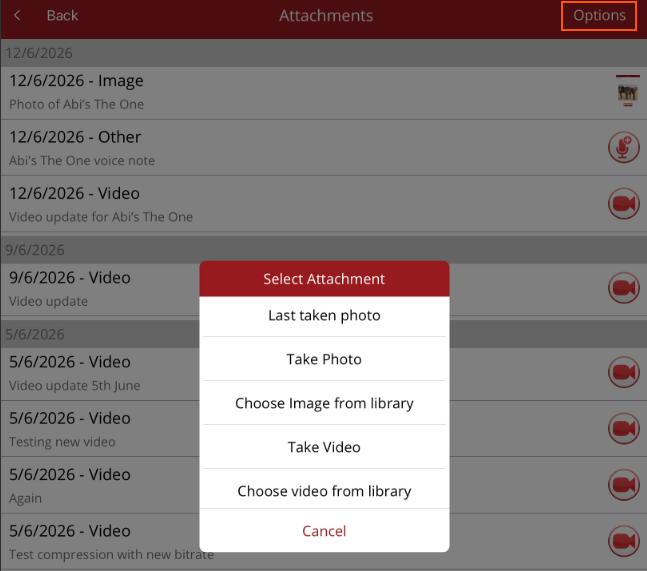
- Last taken photo - goes to device's latest photos where you can select a photo
- Take photo - take a photo using the device's camera
- Choose image from library - choose a photo stored on your device
- Take video - take a video using the device's camera
- Choose video from library - choose a video stored on your device
If the media is added via the desktop, the data will have to be reloaded before the media will become available on the app.
If you have the permission set to send progress notes, you can select the toggle and send the progress note immediately otherwise you will have to save the progress note and share it via the app from Horse Notes tab or send it via the Premier desktop.

