Adding a Filter
Filters in the mobile app will be applied throughout the app not just in the screen where the filter is enabled. This allows a user to set tasks lists, view a specific horse type or filter by specific paddocks or barns without having to add the filter every time a new section is selected.
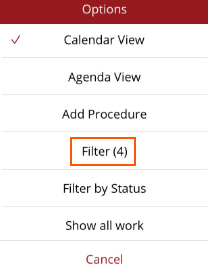
To add a filter, go to one of the Options/Filter menus in the top right-hand corner of the screen
- Horses
- Full Calendar
- Full calendar - Agenda List
- Procedures/Procedure Schedule
- Procedures/Unapproved Procedures
Filters are horse and procedure related including
- Age
- Type
- Trainer
- Paddock/Barn
- Property
- Broodmares/Progeny
- Breed
- Sex
- Practitioner
Once a filter is set, the number of filters set will appear in brackets after Filter in the menu. To see which filters are set, tap on Filter and all filters set will have (1) in brackets after the filter name.
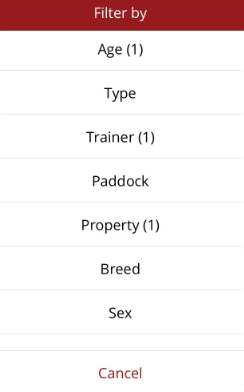
To reset a filter either scroll to the bottom of the Filter list and select Reset filter which will reset all filters OR select a filter and select the default at the top of the list