Add completed or scheduled work to a horse
To add work items for a horse, tap on the horse's name on the Work Profile Horse list. The Horse Profile Current Work tab will be opened.
Adding work
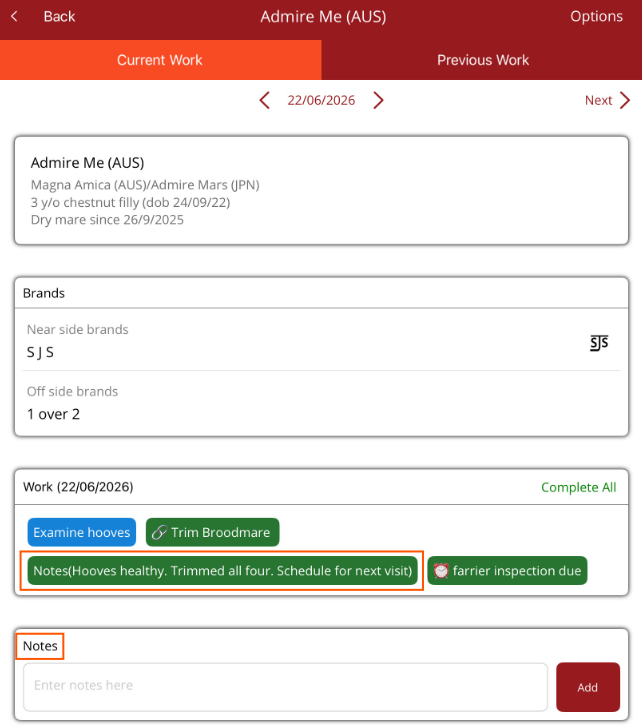
Scroll down and add the work items that relate to work performed on the horse. Multiple work items can be added at the same time. The work will appear in Work near the top of the page.
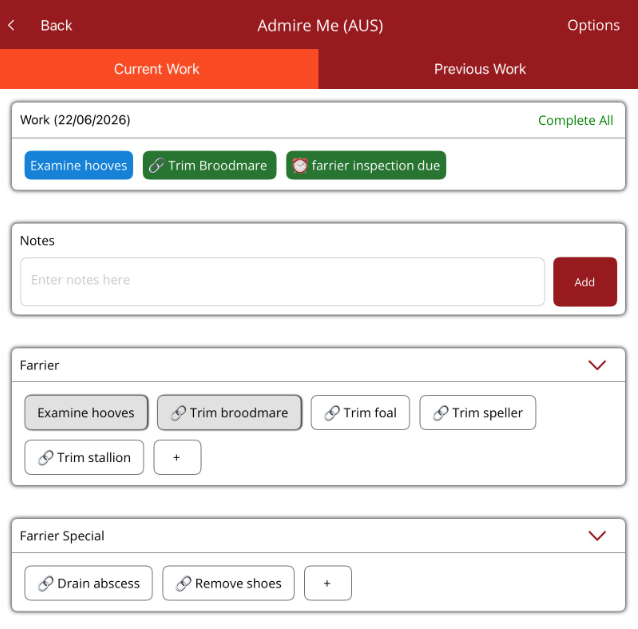
If the work item is blue then it is scheduled. Green indicates it has been completed.
Notes can be added to give more information about the work that was performed on the horse.
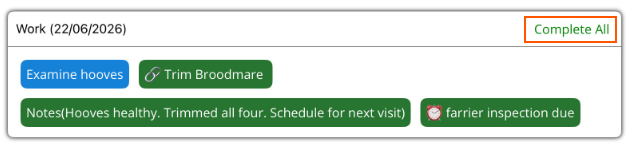
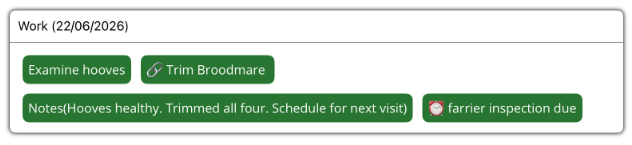
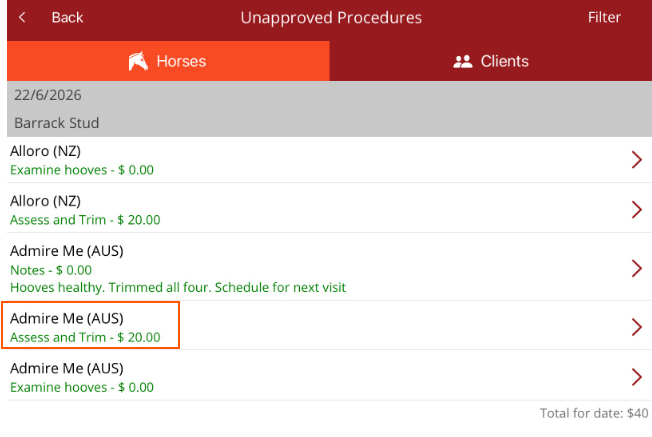
Work items with a linked procedure, reminders and notes will be marked completed when selected. If there is a work item with no linked procedure, it will remain scheduled. Tap on Complete All to complete all work items.
 Scheduling work
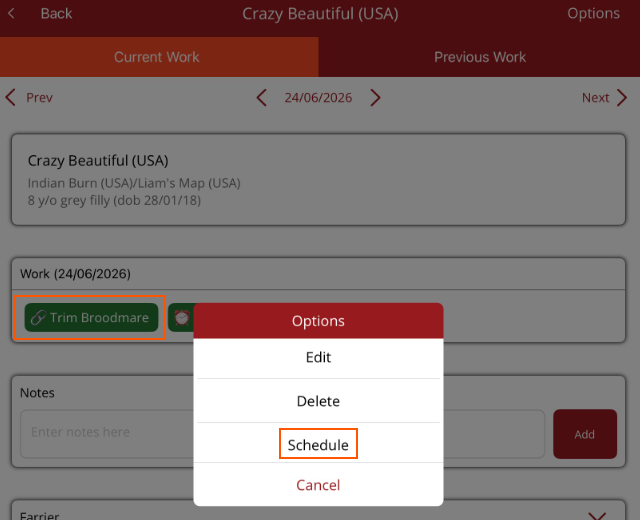
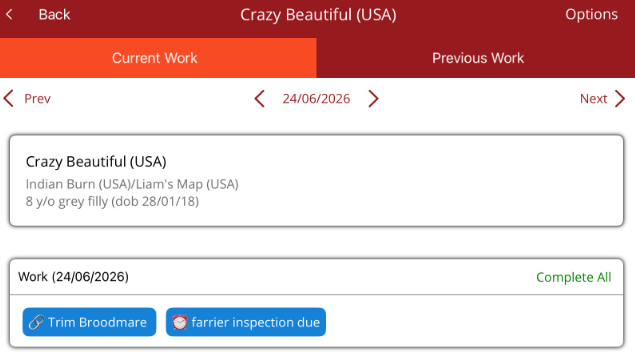
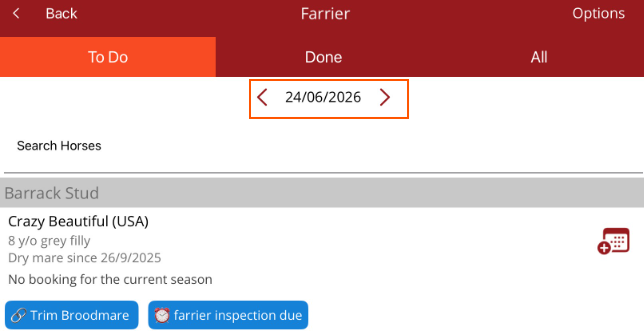
If you are scheduling work for the future, go to the date work will be done, select the work item(s) then tap on the on the work item in Work and select Schedule. The work will be changed from green to blue to indicate it is scheduled. The horse will appear in the To Do list on the Work Profile Horse list on the day the work is scheduled for.