Horse Photo
A photo can be added for a horse from the Quick add menu on the bottom navigation menu. When selected the Add a Photo screen is displayed.
If the Quick add - Photo screen is opened when in a horse profile, the horse's name will automatically be populated in the horse name field.
Add a title for the photo.
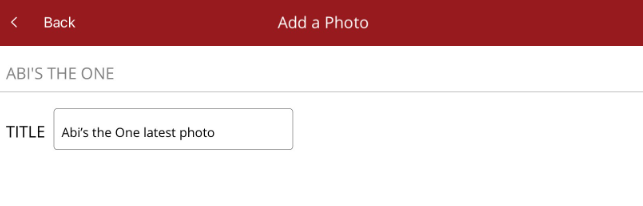
You then need to decide on whether you will take a photo or if you have a photo on your device that you want to use.

Take Photo
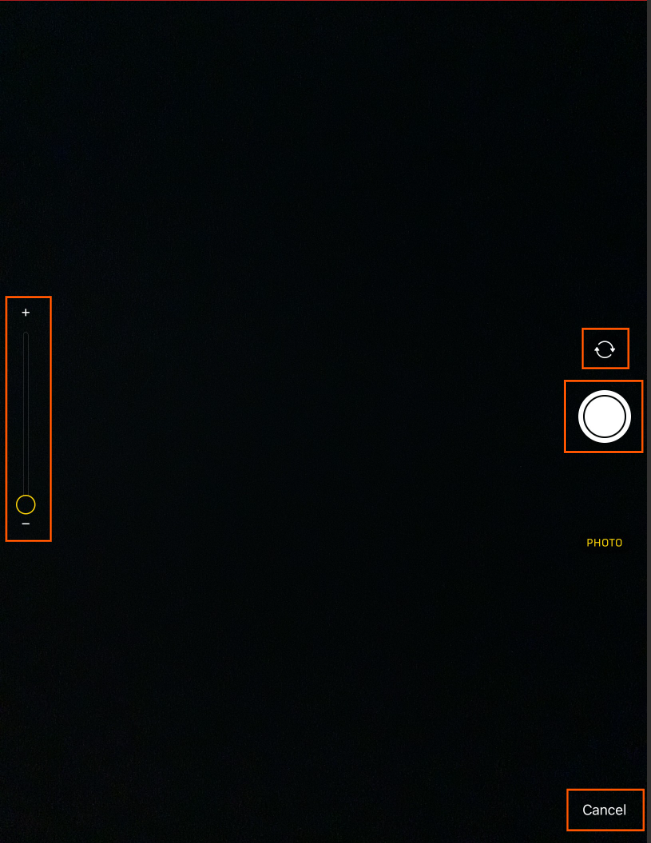
The photo screen will be displayed. You can zoom in/out using the left hand zoom tool, switch camera from back to front with the button above the take photo button or cancel the photo screen on the bottom right of the screen.
Once the photo has been taken, at the bottom of the screen you have the option to retake or use the photo. If you select Use Photo, you will be returned to the Add a Photo screen where you can review the photo.

Choose from Library
When this option is selected, you will be taken to your photo gallery so you can choose a photo. Select the photo, you will be returned to the Add a Photo screen and the photo will be displayed.
Reviewing the photo
You can now review the photo you have taken/chosen by clicking on View.
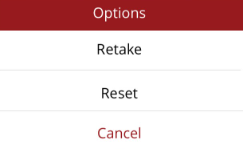
In the Options menu on the top right hand side, you can:
- Retake - will save the title but clear the photo.
- Reset - will clear the title and the photo.
Once you are happy with the photo, you have two options:
- Save - save the photo to the horse. The photo will need to be uploaded using Upload Images via Media on the Home Page before it can be viewed under the horse.
- Send - sends the photo as a progress note to the owners and interested parties.
